
Search Prompts
Search Prompts is MaxAEO’s prompt-mining tool: enter your brand’s website URL, and the system crawls your site, discovers the search topics users are likely to bring to AI assistants, checks their search demand, and generates a batch of monitor prompts you can add to your project in one click.
Why you need it
Section titled “Why you need it”Monitor prompts decide which questions MaxAEO asks the AI platforms — the closer your prompts are to how users actually phrase things, the more your Mention Rate reflects real-world performance. Writing prompts by hand runs into two problems:
- Blind spots: you know your product, but you can’t easily guess how users actually phrase questions in ChatGPT or Perplexity;
- No sense of value: given two candidate prompts, it’s hard to tell which one represents more search demand and commercial value.
Search Prompts automates both: it works backward from your website content to what users would ask, then attaches a heat score so you know which topics deserve a slot in your prompt quota.
How it works
Section titled “How it works”-
Enter your brand website. Fill in the Website URL (required, e.g.
https://example.com), choose a Country / Region and Language, then click Start Analysis. The market and language you pick shape which search topics are discovered and what language the generated prompts use — targeting the US market? Choose United States + English. If the URL format is invalid, you’ll be asked to check it and try again. -
Wait for the four analysis steps. The page shows live progress through:
- Crawling website content — reads your site to understand your product and business;
- Discovering search topics — works backward from your content to the questions users would ask AI;
- Querying search demand — looks up search volume and demand signals for each topic;
- Generating monitoring prompts — turns each topic into concrete monitor prompts.
-
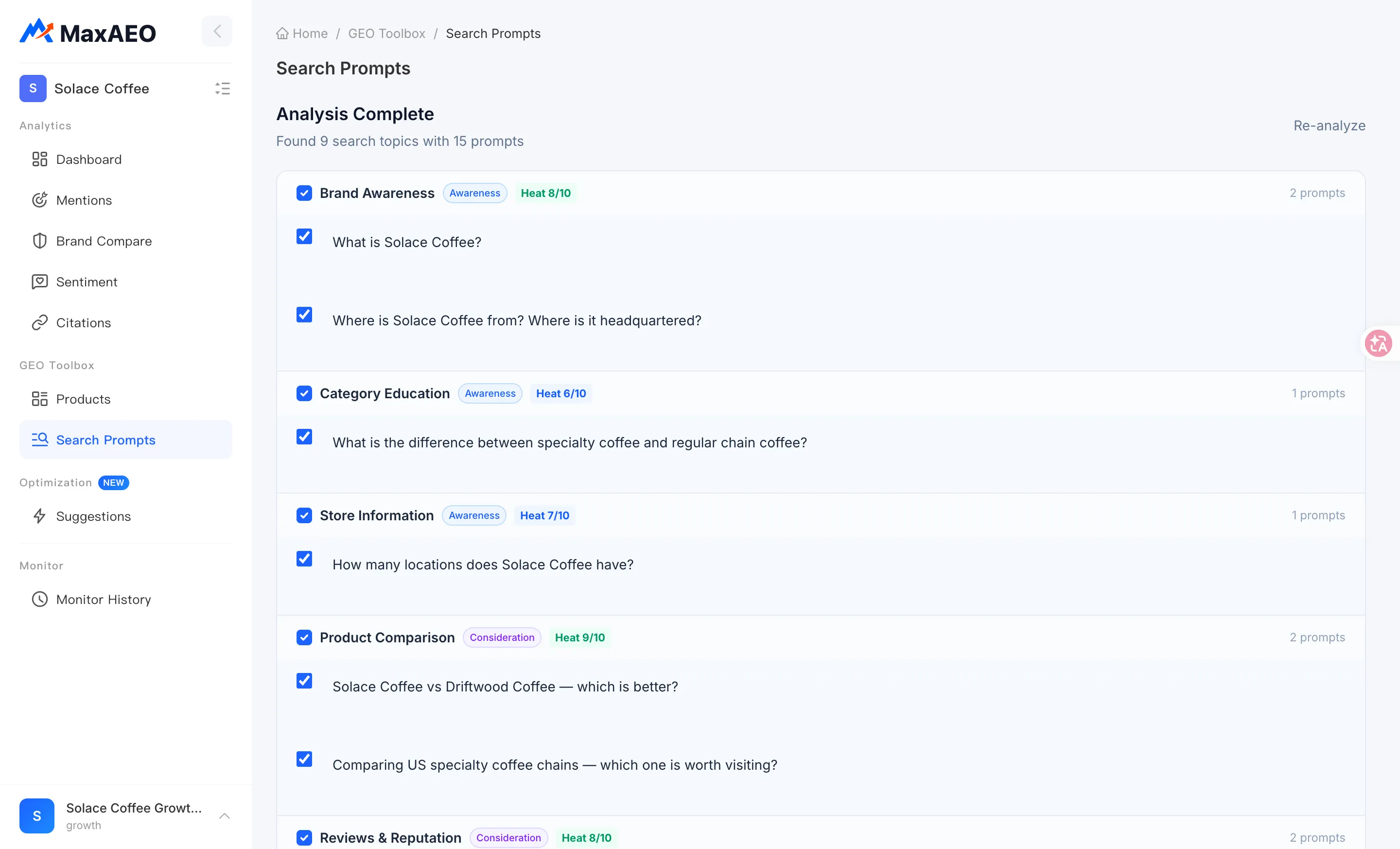
Review the results. When analysis completes, the header shows “Found N search topics with M prompts”. Results are grouped by search topic, each topic carries a heat score, and every prompt underneath is tagged with its buyer-journey layer (Awareness / Consideration / Decision).
-
Select prompts and add them to your project. Check prompts one by one or use Toggle all; the footer shows how many are selected. Click Add to Product to write the selected prompts into your currently selected project in one batch.
Reading the results
Section titled “Reading the results”Heat score: is this topic worth monitoring?
Section titled “Heat score: is this topic worth monitoring?”Every search topic gets a 1-10 heat score that combines search volume, commercial intent, and growth trend. For example, “best project management software” might score 9 while “gantt chart print settings” scores 3 — the former has high demand and sits close to a buying decision, so it deserves a prompt slot first; the latter is related to your product but has limited monitoring value.
Treat the heat score as a ranking aid, not a hard cutoff: a low-heat topic that happens to be your core niche can still be worth monitoring.
Buyer-journey layers: Awareness / Consideration / Decision
Section titled “Buyer-journey layers: Awareness / Consideration / Decision”Each prompt is tagged with where it sits in the buyer journey — the same three layers the New Project Wizard uses when generating your initial prompts:
| Layer | What users are asking | Example |
|---|---|---|
| Awareness | Category and needs | “what’s a good tool for team task management” |
| Consideration | Comparisons and reviews | “A vs B for small teams” |
| Decision | Purchase and evaluation | “is B’s paid plan worth it” |
When selecting, cover all three layers rather than only Decision: Awareness prompts show whether AI puts your brand on the shortlist at all — they usually drive the bulk of your Mention Rate — while Decision prompts sit closest to conversion.
Requirements and limits for adding prompts
Section titled “Requirements and limits for adding prompts”- You need a project first. If you have no project yet, clicking add prompts you to create one — start with the New Project Wizard. If you have several projects, select the target one in the top-left switcher first; prompts are only written to the currently selected project.
- Your prompt quota applies. Each project’s total prompt count is capped by your plan (Starter 10, Growth 100, Pro 400, Enterprise unlimited). If a batch would exceed the cap, you’ll see “Maximum N prompts. Delete some prompts before adding more.” — prune low-value prompts under Products → Prompt Management, or upgrade your plan.
Re-analyze
Section titled “Re-analyze”The results page offers a Re-analyze button: run the analysis again with a different URL or target market, or after a major website update, to get a fresh batch of topics and prompts. If you see “No monitorable search scenarios were found”, the site likely has too little crawlable content — try a more content-rich page URL.
Search Prompts vs. adding prompts manually
Section titled “Search Prompts vs. adding prompts manually”Search Prompts and manual prompt management under Products → Prompt Management aren’t either/or — use them together:
| Search Prompts | Prompt Management tab (manual) | |
|---|---|---|
| Best for | Bulk discovery, filling blind spots | Adding a specific phrasing you already know matters |
| Source | Website content + search demand data | Your own business judgment |
| Extra signals | Heat score, Awareness/Consideration/Decision layer | You set the intent category and country yourself |
| Volume | One batch per analysis, multi-select to add | Add, edit, or delete one at a time |
A workflow that works well: use Search Prompts to build broad coverage first, run a few monitoring cycles, then use the Mentions data to prune manually — cut prompts that never produce value and keep your quota for the search scenarios that matter.