
Quickstart
This page walks you through the shortest path from sign-up to your first data: sign in → create a project → wait for the first monitoring run → read the Dashboard.
What to expect: setup takes about 10 minutes — AI generates most of the configuration for you, so your job is mostly to review and tweak. After you create a project, the first monitoring run starts automatically, and data appears only after that first run completes — it flows in on its own once the run finishes, and you can follow the run’s progress under Monitor → Monitor History.
-
Sign up and log in
Section titled “Sign up and log in”Why: all monitoring data belongs to your account. Signing in is signing up — there is no separate registration flow; your account is created the first time you log in.
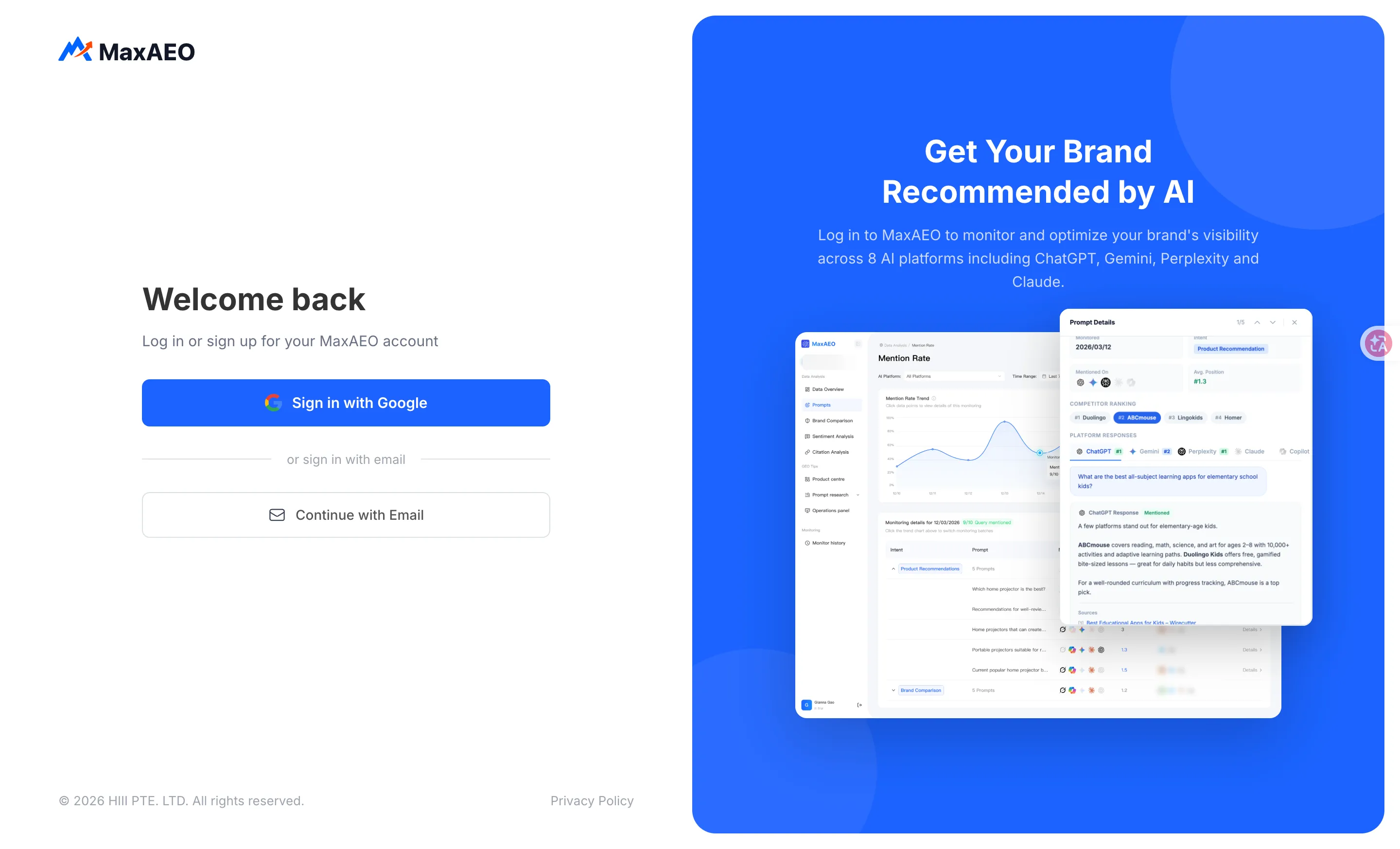
Open the MaxAEO login page and pick either method:
- Google: click Sign in with Google for one-click access.
- Email + verification code: enter your email, click Send Code, then enter the code from your inbox and click Sign Up / Log In. You may occasionally be asked to complete an image captcha.
-
Create a project
Section titled “Create a project”Why: a project is the unit of monitoring in MaxAEO. It defines three things — who to track (your brand and its competitors), what to ask AI (your monitor Prompts), and which AI platforms to ask. No project, no monitoring. (In the app UI, projects appear under the Brand label.)
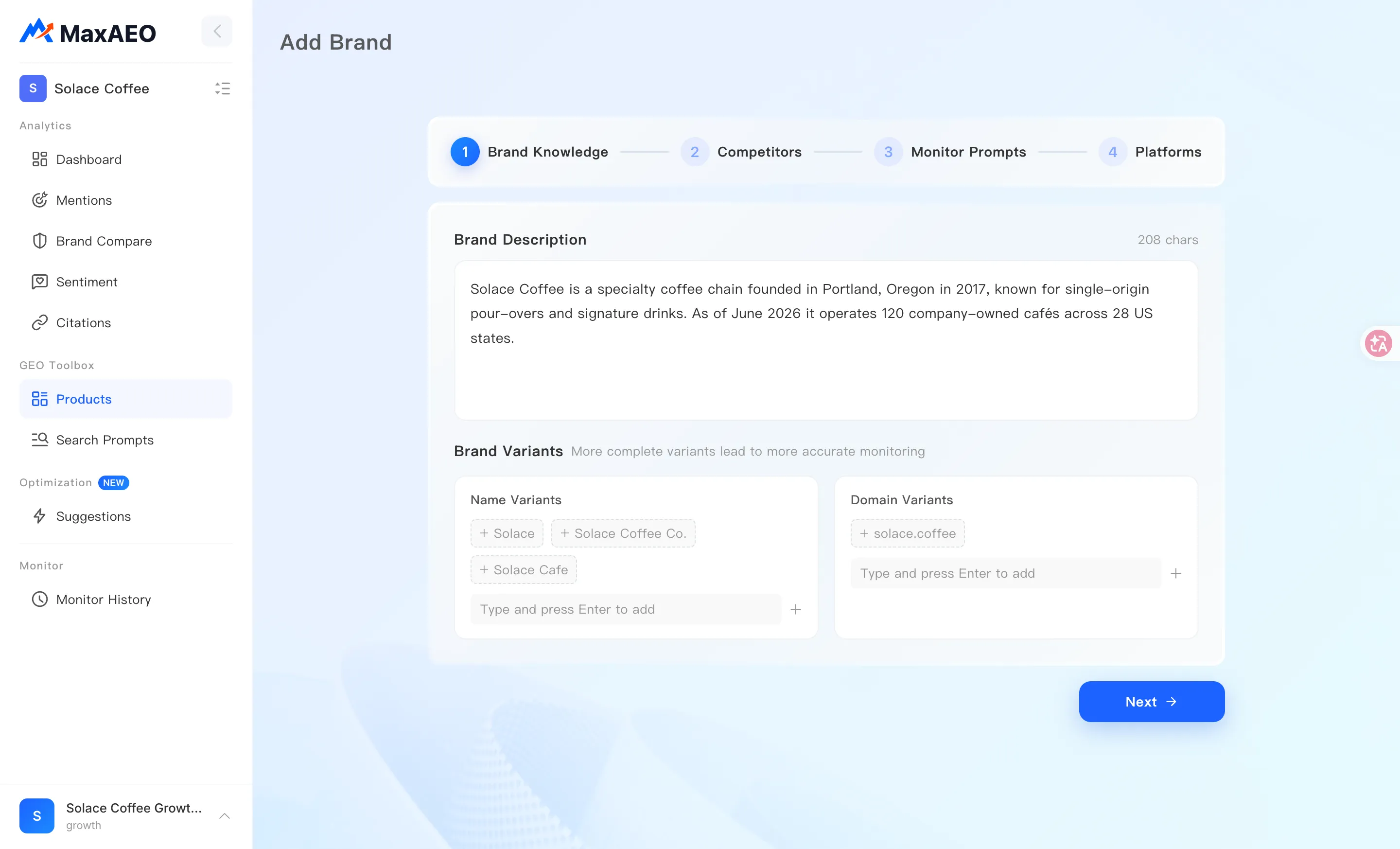
On your first login you’ll see a Get Started prompt. Click it to enter the project creation wizard, which has 4 stages:
- Stage 1 · Brand input: enter your brand/product name and website URL (at least one; both makes analysis more accurate), then pick your target market’s country/region and language — this determines the language of your monitor Prompts and the default platform set. Click Start Analysis.
- Stage 2 · AI analysis: AI identifies your brand, extracts a description and key features, discovers competitors, and generates a first batch of monitor Prompts across the awareness/consideration/decision layers. Just let it run; retry if it fails.
- Stage 3 · Four-step review: confirm what AI generated, step by step — Brand Knowledge → Competitors → Monitor Prompts → Platforms. ChatGPT, Gemini, Claude, and Perplexity are selected by default for international markets. A quick pass to remove anything obviously wrong is enough; you can refine everything later.
- Stage 4 · Done: click Start Monitoring. MaxAEO selects your new project and takes you to the Dashboard, and the first monitoring run kicks off automatically.
For field-by-field guidance on each stage, see the New Project Wizard.
-
Wait for the first monitoring run
Section titled “Wait for the first monitoring run”Why: MaxAEO gets its data by actually asking each AI platform your monitor Prompts and analyzing the responses. That takes time — so an empty Dashboard right after creation is expected, not a problem.
The first run starts automatically after you click Start Monitoring. While it runs:
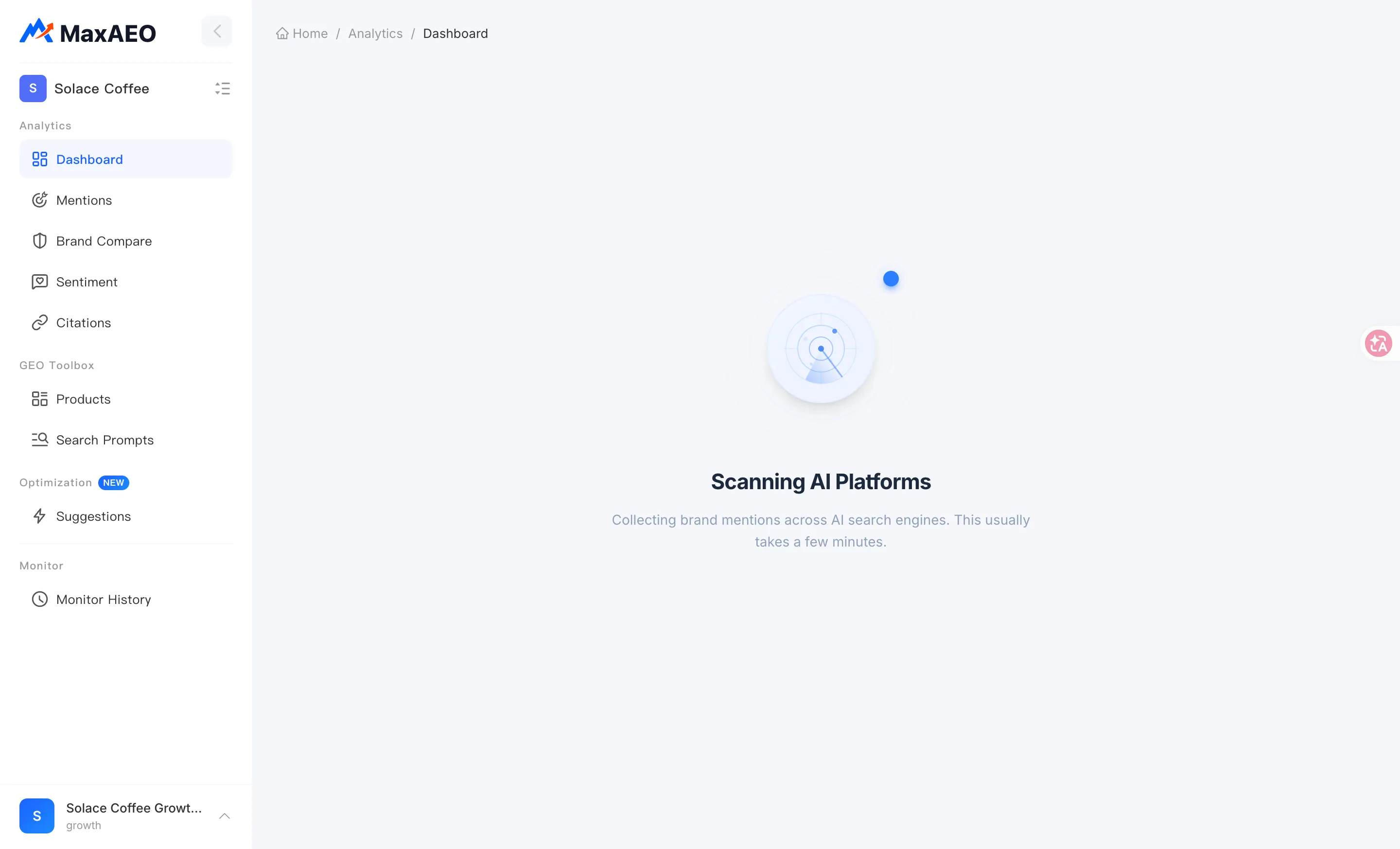
- Data pages such as the Dashboard show a radar-scan animation (“Full Analysis in Progress” / “Scanning AI Platforms”) until the run completes.
- To check progress, open Monitor → Monitor History in the sidebar. It lists every run with its run time, status (In Progress / Completed / Failed), duration, Prompt count, and platform count.
- When the run completes, data flows into every analytics page automatically — no refresh of your configuration needed.
From then on, monitoring runs automatically every day and your data keeps accumulating.
-
Read your first data
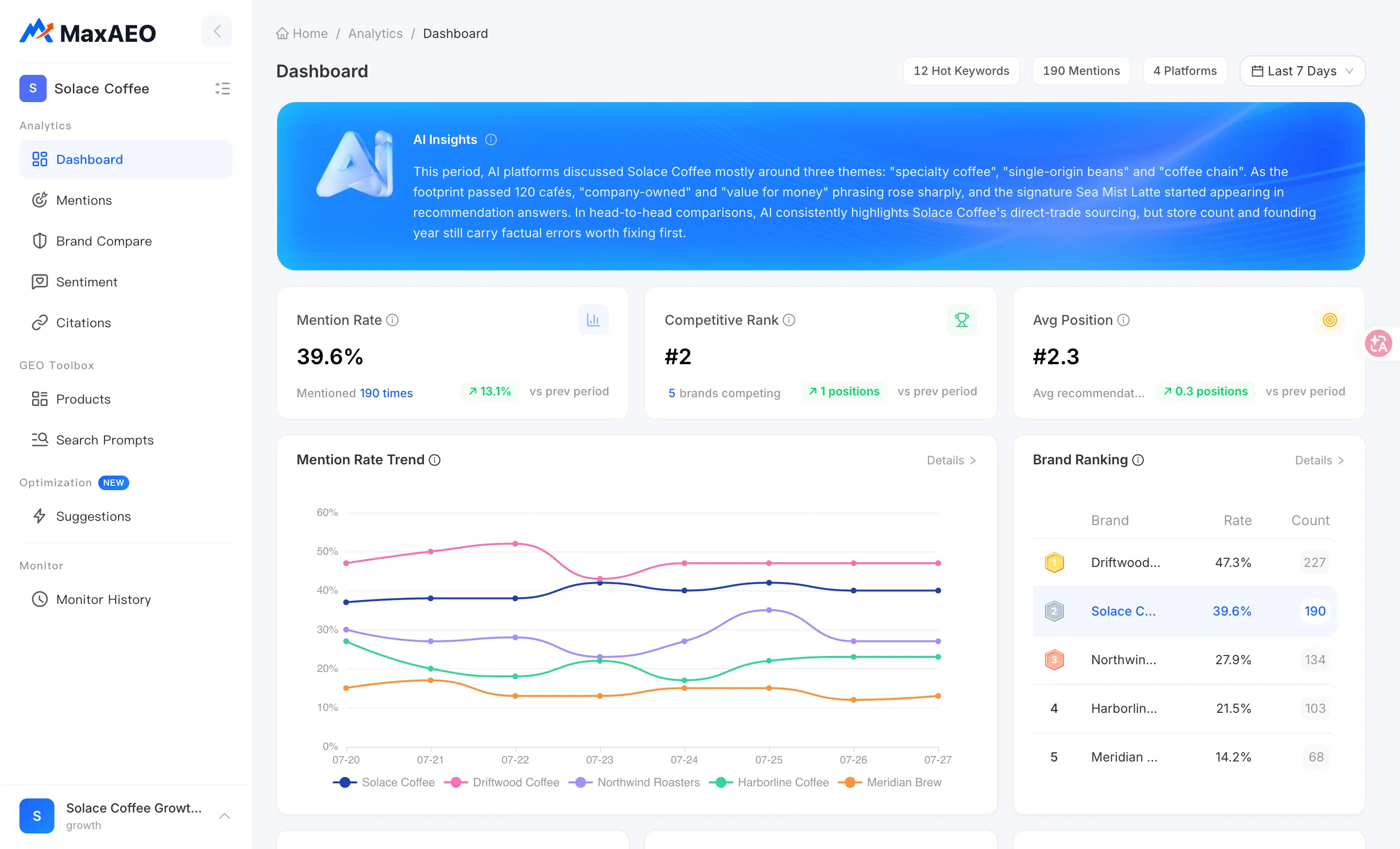
Section titled “Read your first data”Why: your first Dashboard visit shows a lot of charts. Start with the three KPIs at the top — together they answer the three core questions about your brand in AI search.
- Mention Rate — does AI mention you at all? The percentage of monitored AI responses that mention your brand. If 40 out of 100 responses mention you, your Mention Rate is 40%. See Mention Rate.
- Competitive Rank — how do you stack up against competitors? Your Mention Rate’s position among all monitored brands (yours plus competitors). Ranked 2nd out of 6 brands means only one competitor gets recommended more often than you. See Competitive Rank.
- Avg Position — when mentioned, how early do you appear? The average recommendation position when AI mentions your brand; lower is better. An Avg Position of 2.5 means you typically show up as the 2nd or 3rd recommendation. See Avg Position.
Each KPI card shows its change vs. the previous period. Below them you’ll find the Mention Rate Trend, Brand Ranking, Platform Performance, Sentiment Overview, and more — explore at your own pace.
Next steps
Section titled “Next steps”Get comfortable with the four core metrics — everything else in MaxAEO builds on them:
Once monitoring is running, the Dashboard is where your daily data check starts. Stuck on something? Check the FAQ first.