
New Project Wizard
Everything in MaxAEO starts with a project. One project = one monitored brand + its competitors + a set of monitor prompts + a set of AI platforms. Without a project, the system doesn’t know who to monitor, who to compare against, or which questions to ask which AI platforms — which is why creating one is the very first step after signing up.
The wizard (opened with the Add Brand button) does most of the work for you: enter a brand name or website, and AI automatically identifies your brand profile, discovers competitors, and generates your first batch of monitor prompts. You just review and confirm.
Open the wizard
Section titled “Open the wizard”There are three entry points, and they all lead to the same wizard:
- Sidebar: click Add Brand next to the brand switcher;
- Products page: open Products and use the add-brand entry at the top right;
- Empty state: if you’ve just signed in and have no project yet, every page shows an onboarding screen — click Get Started to jump straight into the wizard.
Stage 1: Enter brand info
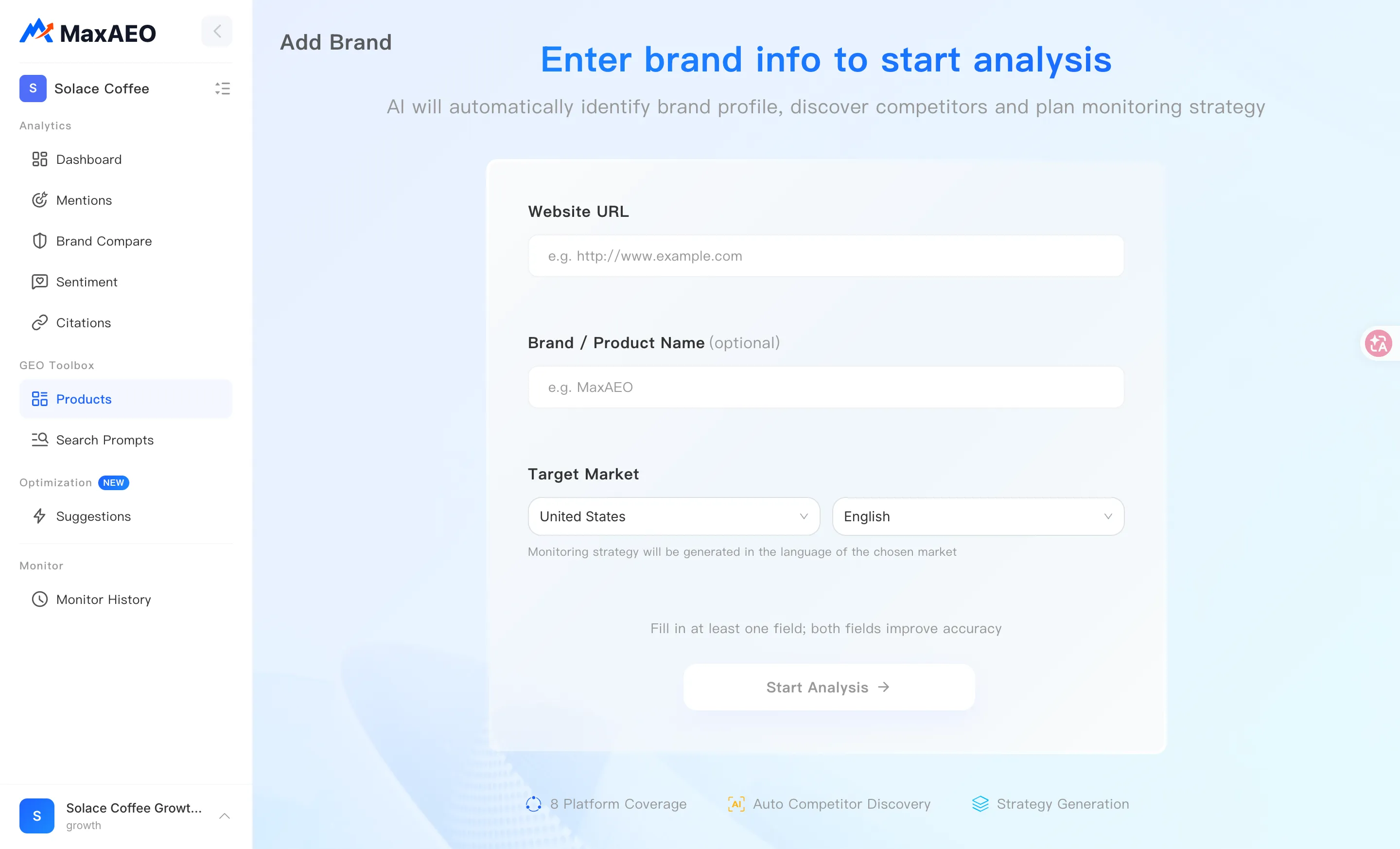
Section titled “Stage 1: Enter brand info”This stage tells the AI who to monitor and which market you’re targeting. The more accurate the input, the closer the auto-generated competitors and prompts will match your actual business.
-
Fill in your Brand / Product Name and Website URL — at least one is required, and filling in both improves accuracy. For example, entering just “MaxAEO” works, but adding the website lets the AI extract a more accurate brand description and key features from your site content.
-
Choose your Target Market: a country/region plus a language. The monitoring strategy is generated in the language of the chosen market — it determines the language of your monitor prompts and which AI platforms are selected by default. For example, choosing “United States + English” produces English prompts and defaults to international platforms.
-
Click Start Analysis to move to the next stage.
Stage 2: AI analysis
Section titled “Stage 2: AI analysis”After you click Start Analysis, no action is needed. The system runs four analysis steps in sequence, and the page shows live progress for each (Pending → In progress → Done):
-
Identifying brand and website — parses your brand name and category tags;
-
Extracting brand description and key features — drafts a brand description and suggests recognition variants;
-
Identifying competitors and aliases — finds your key competitors and their likely websites;
-
Generating initial monitoring strategy — generates monitor prompts across the Awareness / Consideration / Decision layers. These map to the buyer journey: Awareness covers category and needs questions (e.g. “what’s the best AI brand monitoring tool”), Consideration covers comparison and review questions, and Decision covers purchase and evaluation questions.
If a step shows “Analysis failed, please try again”, click Retry to rerun the analysis — the brand info you entered is kept.
Stage 3: Confirm the four-step setup
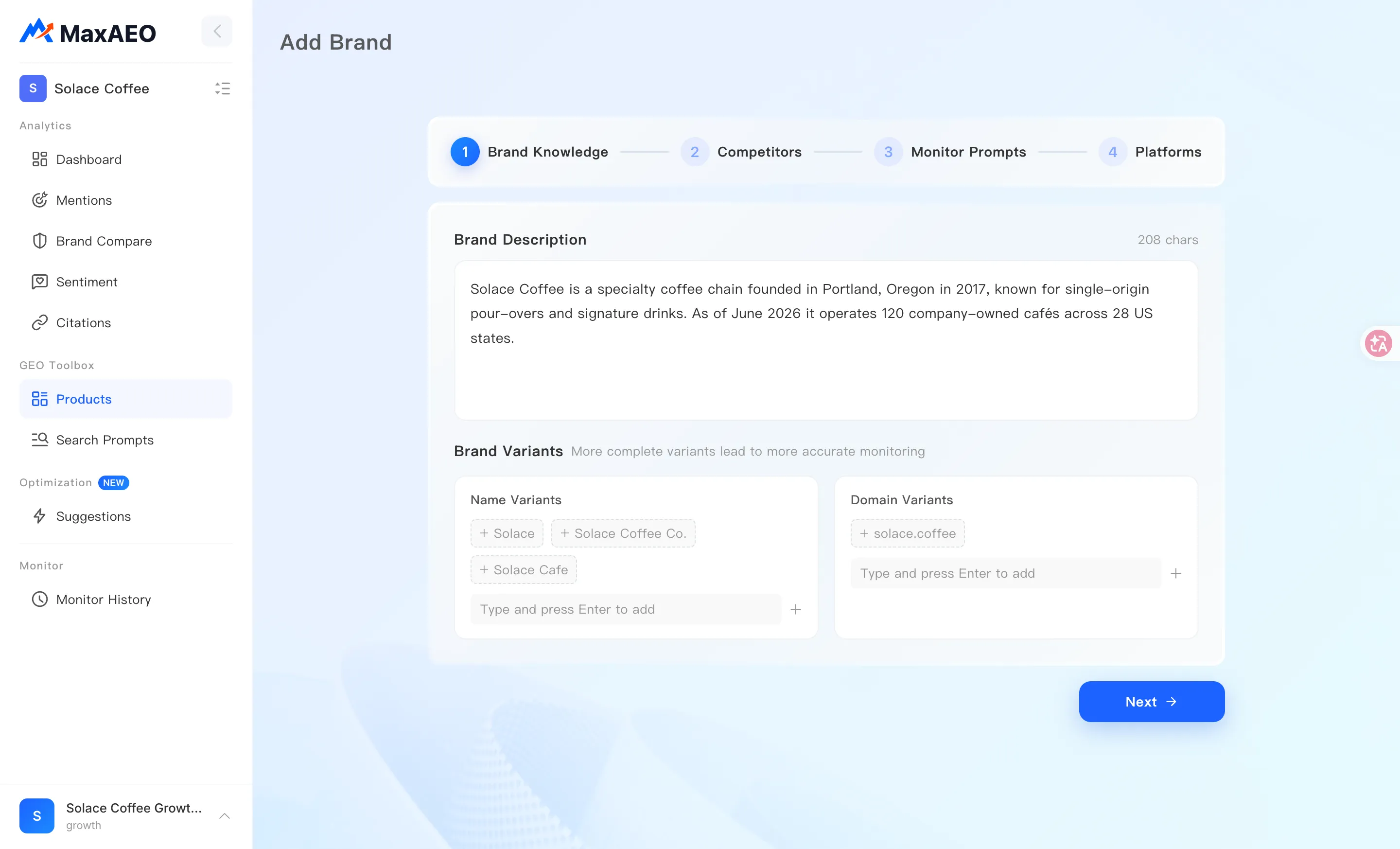
Section titled “Stage 3: Confirm the four-step setup”The AI’s output is only a draft — this stage is where you review and adjust it. The wizard header shows four steps: Brand Knowledge → Competitors → Monitor Prompts → Platforms. Use Previous / Next to move between them, then click Create Brand on the last step.
-
Brand Knowledge — review the brand description and complete your Name Variants and Domain Variants.
Variants matter because AI answers spell the same brand in many ways: “MaxAEO”, “Max AEO”, and “maxaeo.ai” all refer to one brand. Only when every spelling is registered as a variant will the system count them all as mentions of you when calculating Mention Rate. More complete variants lead to more accurate monitoring. Type a variant and press Enter to add it.
-
Competitors — review the competitors the AI discovered. You can add or remove entries, and give each competitor a website URL plus its own name and domain variants. Competitors define who you’re compared against in Competitive Rank, so well-maintained variants make ranking and comparison analysis more reliable.
-
Monitor Prompts — review the generated prompts, grouped into Awareness (Category & Needs), Consideration (Comparison & Review), and Decision (Purchase & Evaluation). You can add or remove prompts in any layer. Prompts are the questions and needs users may ask AI, and you can edit them anytime after creation so the monitoring scope better matches real search scenarios. The prompt count is capped by your plan, shown as “Configured x/y”.
-
Platforms — select the AI platforms to monitor, grouped into International Platforms and China Platforms, with Select All / Clear shortcuts. The English edition defaults to the international platforms ChatGPT, Gemini, Claude, and Perplexity. Monitoring runs on the selected platforms in parallel. When you’re done, click Create Brand.
Stage 4: Done — start monitoring
Section titled “Stage 4: Done — start monitoring”Once you see the “Brand Created Successfully” screen, you have two options:
-
Click Start Monitoring (recommended): the new brand is selected automatically and you’re taken to the Dashboard, where the first full monitoring run starts on its own. While it runs, data pages show a radar-scan animation (“Full Analysis in Progress / Scanning AI Platforms”), and the full dashboard appears as soon as the run finishes. You can follow progress under Monitor → Monitor History.
-
Or click Go to Products: head to the Products page first to refine your brand profile, competitors, and prompts, and start monitoring later.
What you can change after creating
Section titled “What you can change after creating”Nothing you set in the wizard is final. Everything can be adjusted later on the Products page:
| Setting | Where in Products |
|---|---|
| Brand name, website, description, name/domain variants | Brand Profile tab |
| Add or remove competitors | Competitors tab |
| Add, edit, or delete monitor prompts; intent and country | Prompt Management tab |
| Platform selection | Platforms tab |
Note: every change takes effect in the next monitoring cycle — historical data is never rewritten.