
FAQ
Monitoring and data
Section titled “Monitoring and data”Why are my results different every time?
Section titled “Why are my results different every time?”This is normal — it’s not a data error. AI answers are inherently non-deterministic: ask the same prompt on the same AI platform twice and you can get different answers — which brands are mentioned, in what order, and in what wording all vary. That’s a built-in property of large language models. MaxAEO faithfully records every answer, so your results fluctuate along with them.
Here’s a concrete sense of scale: say you monitor 10 prompts across 4 AI platforms, so one monitoring run collects 40 AI answers. Today 12 of them mention your brand — a 30% Mention Rate. Tomorrow, with the exact same setup, maybe only 10 do — 25%. That 5-point swing can be pure AI randomness, not a real decline in your brand’s standing.
So read your data with one rule in mind: trends beat single data points. Switch the date range to the last 14 or 30 days and look at the Mention Rate trend. A curve that keeps sliding for two or three weeks deserves attention; a single day’s dip does not. See Mention Rate for how to interpret the metric in depth.
I just created a project — why is there no data yet?
Section titled “I just created a project — why is there no data yet?”Your first monitoring run is still in progress; data appears automatically once it completes. When you click Start Monitoring at the end of the new project wizard, MaxAEO automatically launches a full first run: it submits every monitoring prompt you configured to your selected AI platforms and collects the answers. While that happens, the Dashboard and other pages show a radar-scan animation with “Full Analysis in Progress” — nothing is stuck; the data is still being collected.
To check progress, open Monitor → Monitor History in the sidebar. You’ll see the run’s status (In Progress / Completed / Failed) and duration. Once the status turns Completed, the latest data flows into every analytics dashboard automatically — no manual action needed. How long a run takes depends on your prompt count and platform count.
If Monitor History shows a Failed status instead, see the next question.
A monitoring run failed — what should I do?
Section titled “A monitoring run failed — what should I do?”Check the status in Monitor → Monitor History first; a failed run never damages your existing data. MaxAEO runs monitoring automatically every day — check Monitor History later to see the status of subsequent runs.
If several consecutive runs fail, or a run stays In Progress for an unusually long time, contact us through Feedback (see How do I contact you or report a problem?): pick Bug / Issue or Data Issue as the issue type and attach a screenshot of the Monitor History page — it helps us pinpoint the cause much faster.
Plans and quotas
Section titled “Plans and quotas”I hit a “Plan limit reached” notice — what now?
Section titled “I hit a “Plan limit reached” notice — what now?”Two options: upgrade your plan, or trim your current setup. Every plan caps four kinds of resources: the number of projects (brands), monitoring prompts, AI platforms, and competitors. Adding anything beyond a cap triggers the “Plan limit reached” notice. See Plans & Quotas for each plan’s exact quotas.
- Upgrade: click Upgrade on the notice, or click your avatar at the bottom of the sidebar and choose Plans & Pricing. The pricing dialog lists each plan’s exact quotas, with monthly or annual billing (annual saves 20%). Checkout runs through Stripe, and your new plan activates once payment completes.
- Trim: free up quota in Products — remove competitors you no longer track under Competitors, delete low-value prompts under Prompt Management, or deselect platforms under Platforms.
A related notice is “Plan doesn’t fit your setup”, which appears when the plan you’re subscribing to allows fewer platforms than you currently have selected. You can continue and adjust your monitored platforms in Products afterwards, or pick a higher plan instead.
Why can’t I see older data?
Section titled “Why can’t I see older data?”Your plan has a data retention limit; data beyond the retention window can’t be viewed. Retention by plan: Starter keeps 30 days, Growth keeps 90 days, Pro keeps 1 year, and Enterprise is unlimited — see Plans & Quotas for details. When your selected date range reaches past the window, you’ll see a notice that your current plan supports data from the last N days only.
For example, on Starter (30-day retention), if today is July 24 you can view data back to June 24; comparing against your Mention Rate from three months ago requires Growth or above. To upgrade, open the user menu and choose Plans & Pricing.
Configuration and projects
Section titled “Configuration and projects”I changed my brand info — when does it take effect?
Section titled “I changed my brand info — when does it take effect?”On the next monitoring run. Any change you save in Products — brand profile (brand name, official URL, description, name/domain variants), competitors, monitoring prompts, monitored platforms, or the project name — shows the same confirmation: “Saved successfully. Changes will take effect in the next monitoring cycle.” That’s the one rule for the entire product.
Two things to expect:
- Historical data is never rewritten. Data collected before your change still reflects the old configuration — for example, a newly added name variant won’t re-scan past AI answers.
- MaxAEO monitors automatically every day, so your new configuration typically shows up in the dashboards from the next day onward, with no manual trigger needed.
What happens if I delete a project?
Section titled “What happens if I delete a project?”All associated data is permanently erased — confirm before you act.
The entry point is Products → Settings → Danger Zone → Delete Product Line, with a confirmation step. If all you want is a rename or a scope change, use the name field in Settings or adjust the Brand Profile, Competitors, Prompt Management, and Platforms tabs instead — no need to delete and rebuild.
Contact and feedback
Section titled “Contact and feedback”How do I contact you or report a problem?
Section titled “How do I contact you or report a problem?”The main channel is the in-app Feedback form.
-
Click your avatar at the bottom of the sidebar to open the user menu.
-
Choose Feedback.
-
In the dialog, pick an issue type — Bug / Issue, Feature Request, Data Issue, UX Improvement, or Other; describe the problem, and attach up to 3 screenshots (strongly recommended — it speeds up diagnosis considerably).
-
Click Submit Feedback. We’ll get on it as soon as possible.
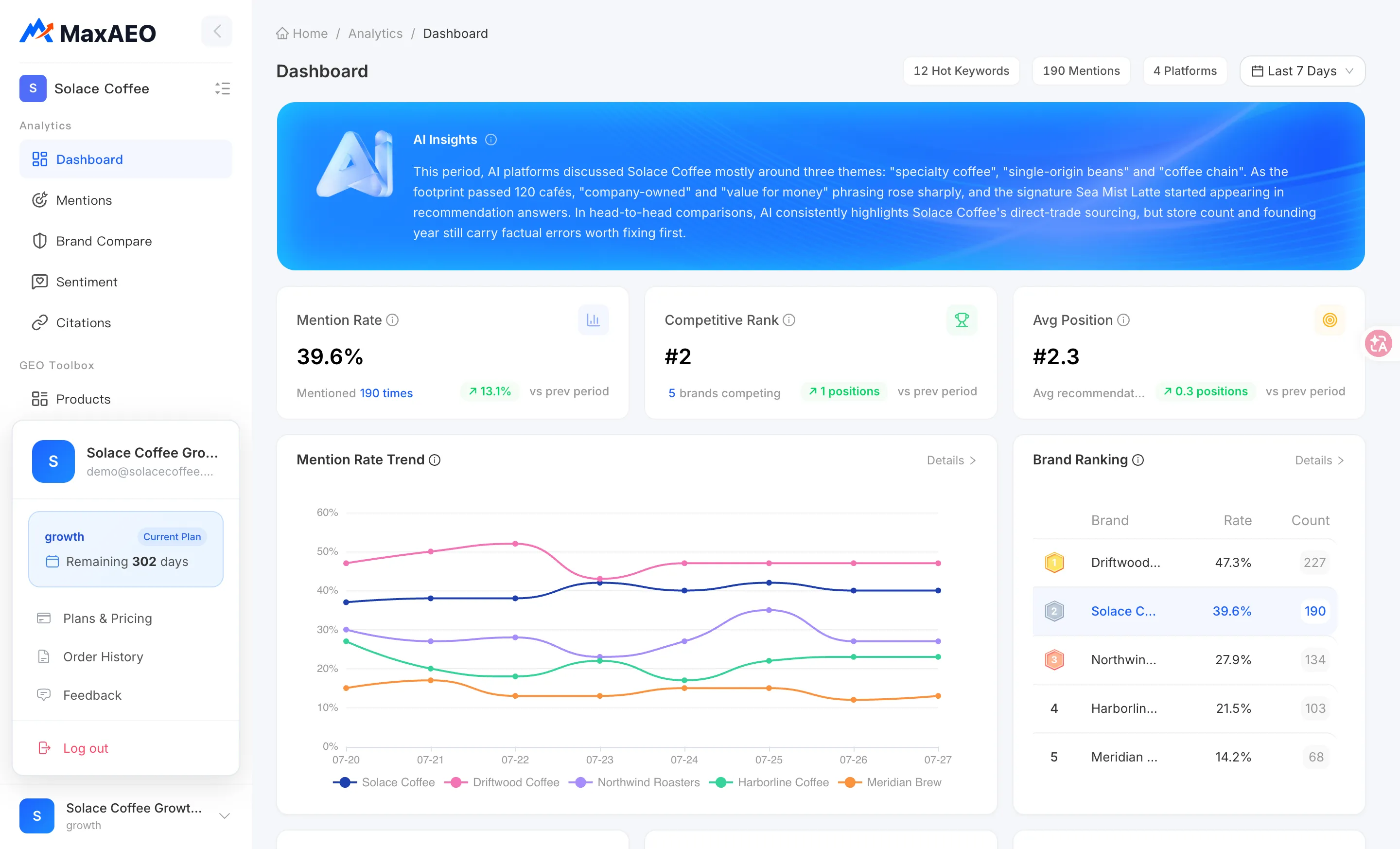
For enterprise inquiries, open the user menu, choose Plans & Pricing, and click Contact Sales on the Enterprise plan. Fill in the contact form and a dedicated consultant will reach out within 3 days.
Didn’t find your answer?
Section titled “Didn’t find your answer?”Tell us directly through the Feedback entry above — just pick Other as the issue type. And if you’re still setting things up, walking through the quickstart first resolves most questions; it covers everything from signing up to seeing your first monitoring data: